
I will discuss two highly notable features of ZFS, one of which is truly functional: Compression and deduplication. The compression function, in particular, runs so fast that it’s imperceptibly smooth even on my 2011 model Lenovo Thinkpad X220 laptop.
These two functions offer benefits such as disk space savings, performance gains, and potentially extending the lifespan of SSDs.
- Disk space savings come naturally with both compression and deduplication. Depending on the applications you use, gains of 1.5–2x are very common.
- In both functions, the amount of data written to the hard disk is reduced. Since the hard disk is generally the slowest component of a computer, this reduces wait times.
- Performance and lifespan issues arise as you fill up SSDs. Less data means a longer life.
Compression
ZFS can compress and save data on the fly. You can select this at the dataset level; for example, you can keep compression enabled on the dataset containing users’ home folders and disable it on a dataset containing already-compressed backups.
We can enable compression by adding the compression=on or compression=lz4 argument to the zfs set command.
zfs set compression=lz4 tank/home
The reason I wrote “lz4” instead of “on” is that you can choose between compression levels. You could use a slower compression that occupies less space, or conversely, a very fast compression that doesn’t provide as much space saving. ZFS’s default compression level is lz4; it has proven quite sufficient for my usage.
For a real-life experience, I’ll use my own laptop system (so the pool names etc. will be specific to it) which I’ve been using with ZFS for a while. You can use the following two commands to get information about the compression status. The first shows whether compression is on and its level, while the second shows how much compression is currently being applied. If you append a dataset name to the end, it will tell you the compression status for that specific dataset.
zfs get compression
zfs get compressratio
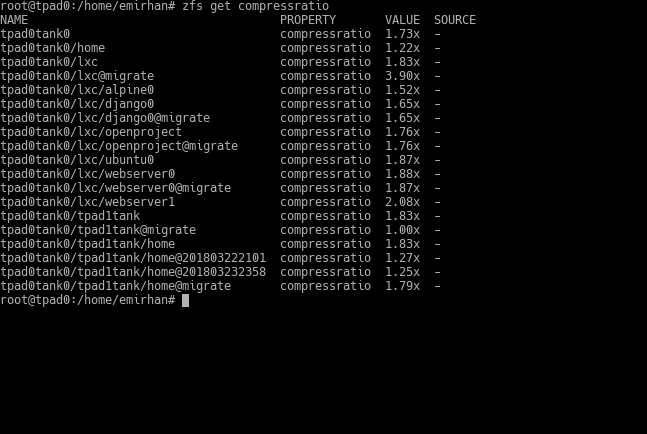
ZFS’s compression feature increases your speed in addition to increasing storage efficiency. If your storage is not on an SSD, the hard disk is the weak link in your computer’s performance. Thanks to compression, you are actually writing a smaller amount of data. This means a performance boost.
Even if you are using an SSD, I recommend turning on compression. Yes, SSDs are already fast, but writing less data can both slightly increase its speed (due to reduced write amplification) and extend its lifespan. These are, of course, on top of the storage space gains.
ZFS compresses files saved after compression is enabled. In other words, if you turn on compression after putting in 5GB of data, that 5GB portion will not be compressed. Considering the system load brought by compression is very low, my advice is to enable compression on the top-level dataset (the pool’s root dataset) as soon as you create your ZFS pool. The compression function affects sub-datasets as well, so all datasets you create in the future will work with compression (unless you specify otherwise).
Deduplication
ZFS can also perform block-level deduplication. To understand this feature, remember that files on hard disks are kept in “data blocks.” When ZFS sees identical data blocks across multiple files, it provides deduplication by avoiding writing them to the disk.
Like compression, deduplication affects records made after it is enabled. It is turned on and off very similarly to compression:
zfs set dedup=on tank/dataset
And to learn the deduplication ratio:
zpool get dedupratio
Now let’s return to our test system and enable deduplication on the tank/home dataset. Then, I will copy a specific file three times with different names and show the deduplication ratio.
Notice how short the second and third copies took. It didn’t actually copy them. It just updated the table that tells where the blocks are. Consequently, an operation that should have taken 14 seconds was completed in just over 2 seconds.
How much will your gain be? I tested this a bit before the system resources it consumes scared me off. Naturally, I achieved very high ratios on my virtual machines. This is what happens if you keep 5 copies of the same operating system. 🙂
What scares me is the RAM usage by deduplication. To perform this deduplication task, blocks are tracked, and when a commonly used data block is identified, its location on the disk is written to a table. This table (the dedup table) is normally kept in RAM. It requires 320 bytes of space per block entry. As the number of commonly used blocks increases, so does the size of this record.
Furthermore, the dedup table has a limit: one-fourth of the amount ZFS will use in RAM. Even if this is adjustable, there is a RAM constraint. General recommendations are in the form of 5GB of RAM per TB you will store. Oracle’s calculation is as follows:
C: Capacity where deduplication can be applied, in TB
D: Total amount of RAM in the system, in GB
S: Block size, in KiB
R: Target dedup ratio
C = (0.1 x D x S x R)/320
This calculation assumes the dedup table is 1/10th of the total system memory. That’s why it multiplies by 0.1. There are two important variables here; one is the block size. In ZFS (unless you specify otherwise), there is a variable block size. That is, a while after setting up your storage system, you might encounter lower values than the average block size you initially calculated. And then there’s R; the deduplication ratio. You might not be able to predict this at first either.
If you haven’t also set up caching with fast SSDs, RAM issues may arise. The dedup table will overflow from memory and start being written to the disks; since read/write requests to the disk will also require looking at the dedup table, they will double, and you could be left with a terribly slow system.
Therefore, a few basic suggestions for the deduplication feature can be summarized as follows:
- Try not to do it on servers under load that require high and consistent performance. The disk cost per TB might be cheaper than the cost of 5GB of RAM.
- If you must do it, definitely use SSD caches, and make sure they are fast ones.
- It can be used in your backup-oriented storage that runs from night to night; why not?
- It can also be used in home servers where you don’t expect much performance, provided there is an SSD supplement.
- Be ready to fine-tune the cache.